Parapeek Clock
Formerly 3Duo ClockInside your phone.
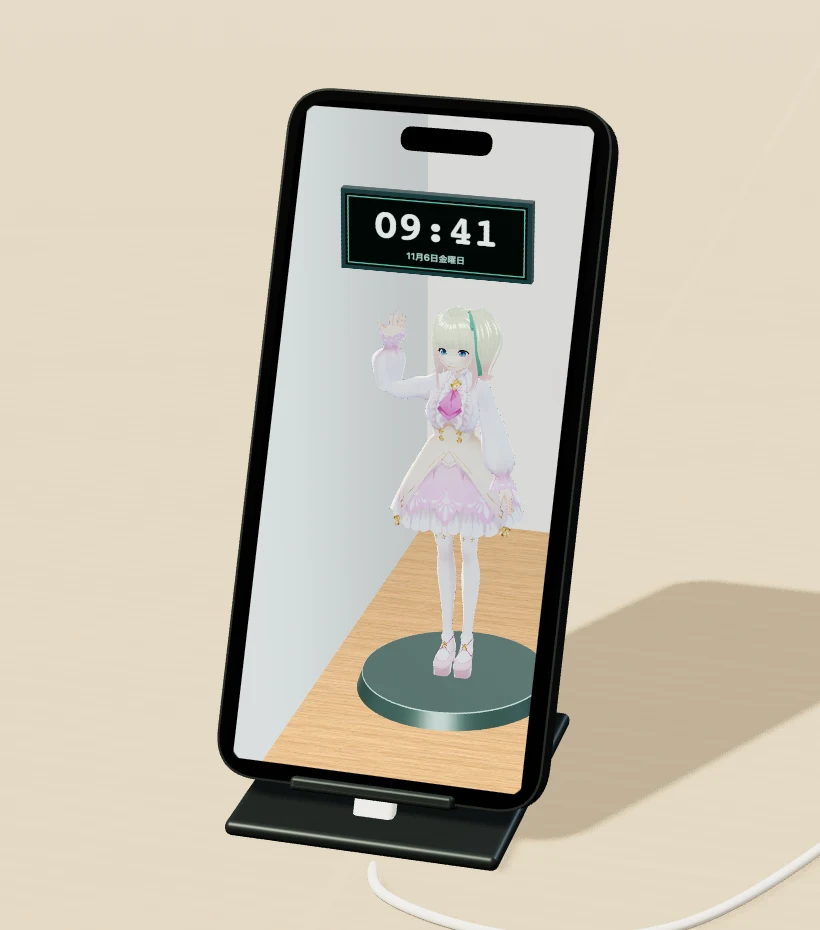
A room you can look into.

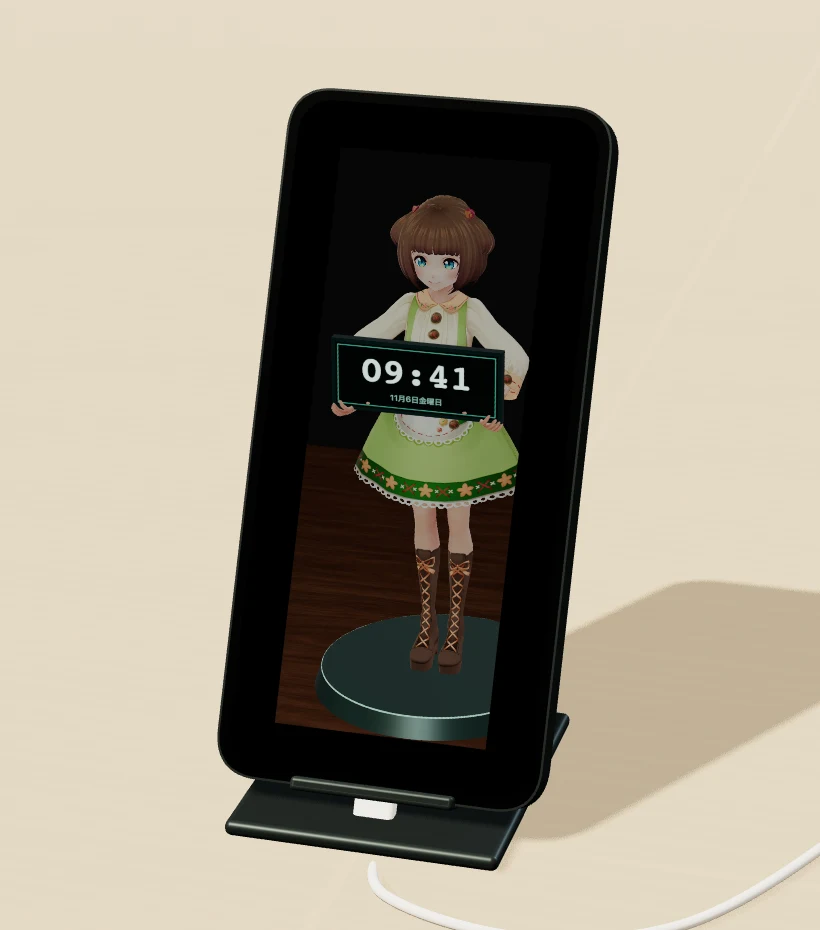
Move a little.
See a little more.
Lean to the right to see more of the left wall. The app reads device tilt too, drawing the scene from your eye position and the orientation of the screen.
Device and stand shown for illustration.
Try moving the viewpoint
Try moving your viewpoint.
WEB SIMULATION · NO CAMERA ACCESS
In front of the frame.Move a character or clock forward and it can overlap the black frame. A slight side view makes the near and far layers easier to see.
Face tracking is optional. Camera images and face data are processed on your device. The illusion varies with your position and setup.
A room for
every mood.
Model, surfaces, lighting and clock. Start with one of nine presets, then choose the details and effects that make it yours.
Keep imported models, images, lighting and effects in a personal preset. Return to your favorite setup whenever you like.
AQUARIUM / 2 PRESETS
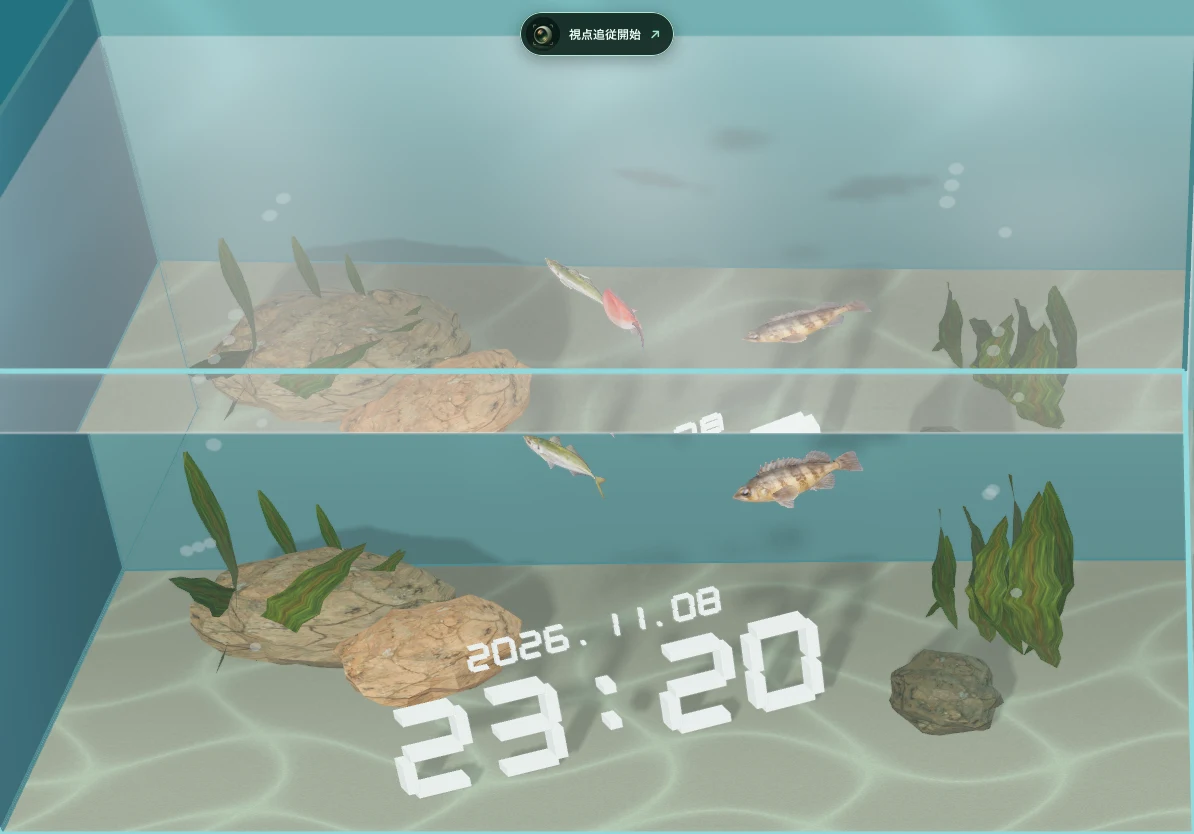
A small aquarium on your desk.
Choose a shallow tank or deep blue water. Pick up to ten fish from ten species. As they swim toward the glass, watch the fish and clock shift through the water and glass from different angles.
Fish models by Nachatto (なちゃっと).
Time, in
your own style.
From flipping digits to floating 3D type: choose from nine clock styles and arrange them separately from dates and calendars.
Adjust position, size and rotation for clocks and news. Choose an included RSS source or enter a URL, then display headlines as a ribbon, ticker, newspaper or sign.
Victoria / Vivi: VRoid Project (CC0)
Puka / Mofuri: Doui Lab · RIICHI ORBIT
An illusion.
Built on geometry.
Your eyes. Your device’s tilt.
The front camera estimates eye position E while gravity measures device tilt. Physical screen dimensions bring the eyes, display and level floor into the same perspective calculation.
Try keeping the eye still and moving only the angle. The blue glass tips; the white desk grid stays level.
See the projection math
n = (0, cos α, sin α)The diagram shows pitch about the lower edge H. At angle α, the screen normal points toward the viewer and up. In the app, the full gravity vector also accounts for sideways lean.
t = n·(H − E) / n·(P − E)
S = E + t(P − E)
For a point P in the room, follow the line from E to P. Its intersection S with the tilted glass is the pixel to draw. The physical screen width and height set its scale.
On supported Apple devices, TrueDepth estimates both eyes in 3D. With a conventional front camera, depth is estimated relative to a calibrated distance. The diagram uses a fixed room and arbitrary length units.
Your model.
Its own room.
A prop from Blender or a VRM avatar: open Change model to add a file to the room with your clock.
File formats and export settings
Import binary glTF 2.0 (.glb) or VRM 0.x/1.0 with textures and geometry embedded, up to 50 MB per model. ZIP archives up to 256 MB can contain compatible models. Required Draco, Meshopt and BasisU compression is unsupported. Imported files stay on your device.
Change the walls, floor and light
See the settings in the app
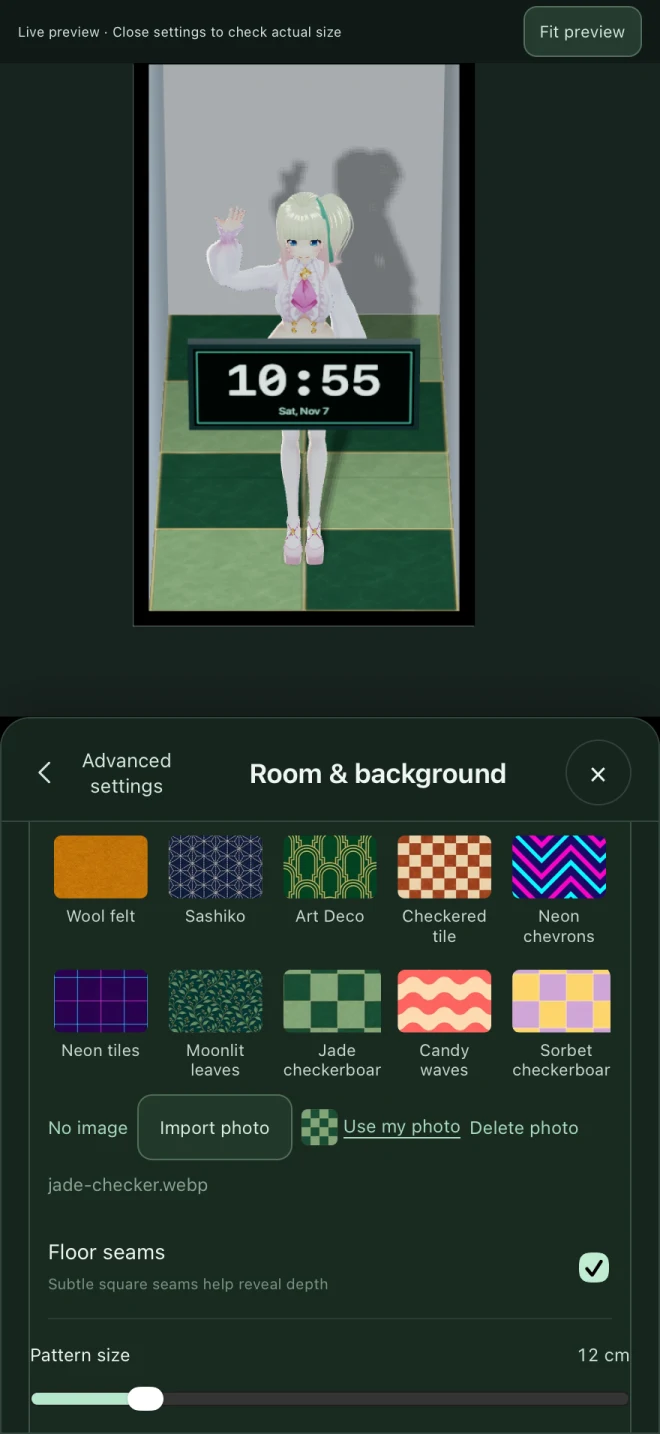
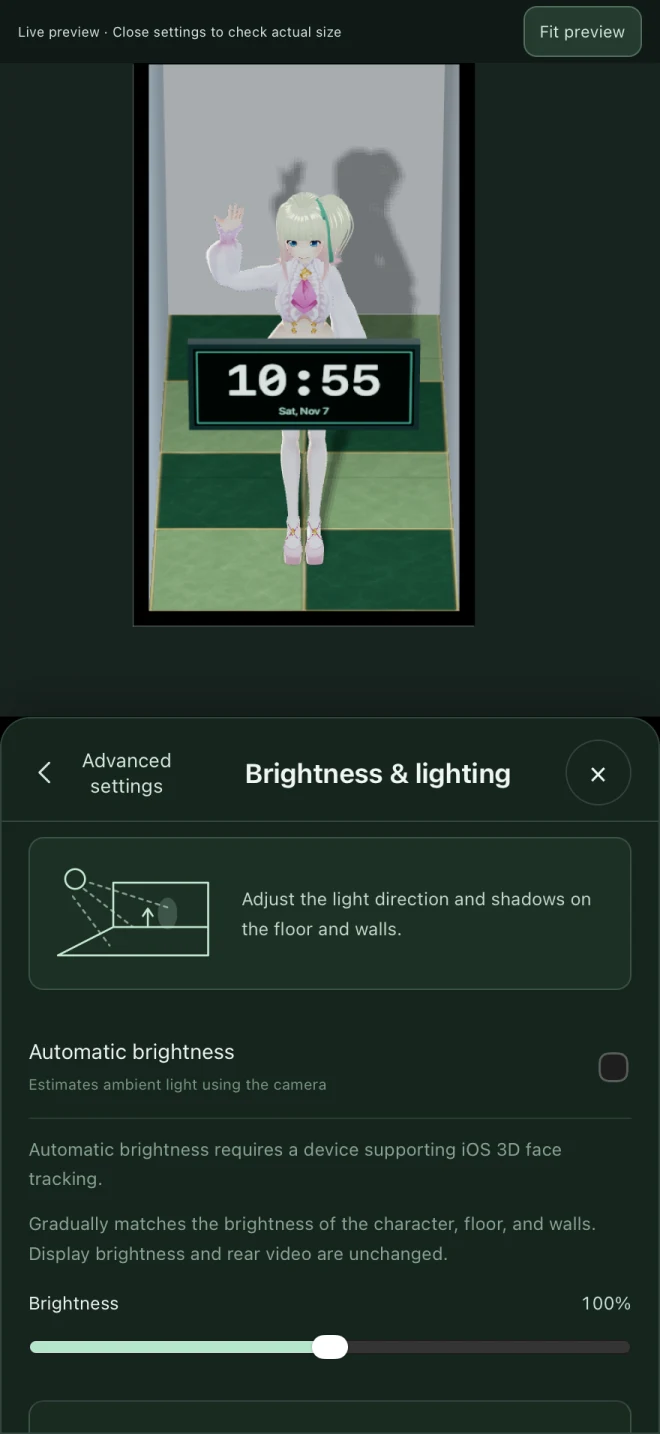
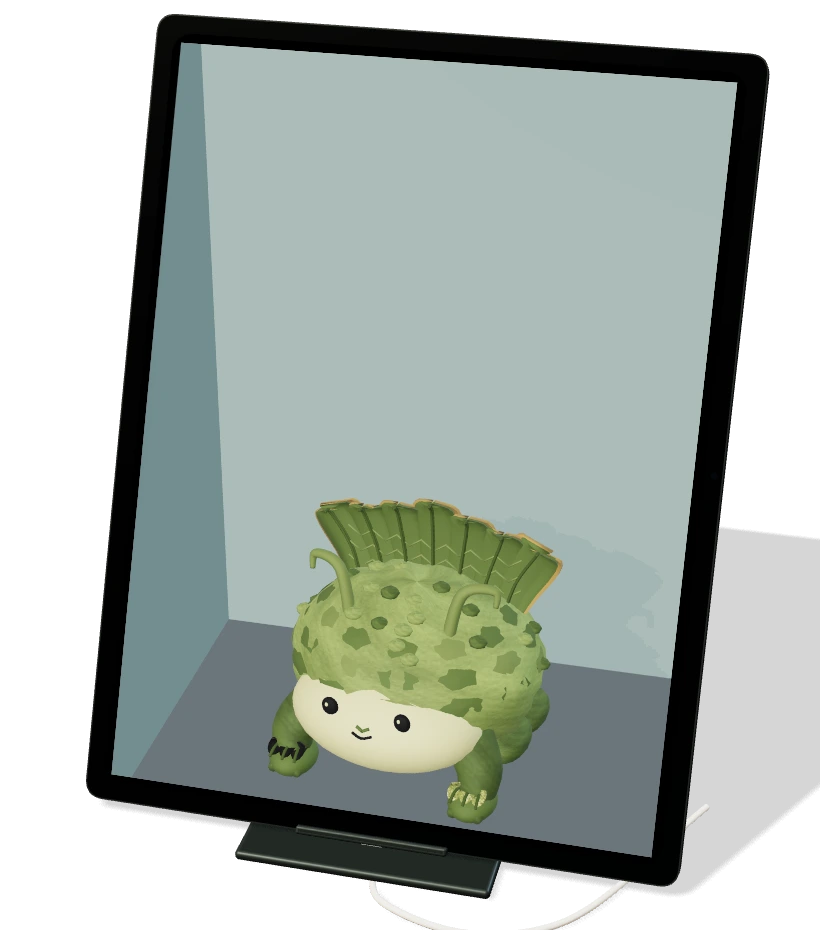
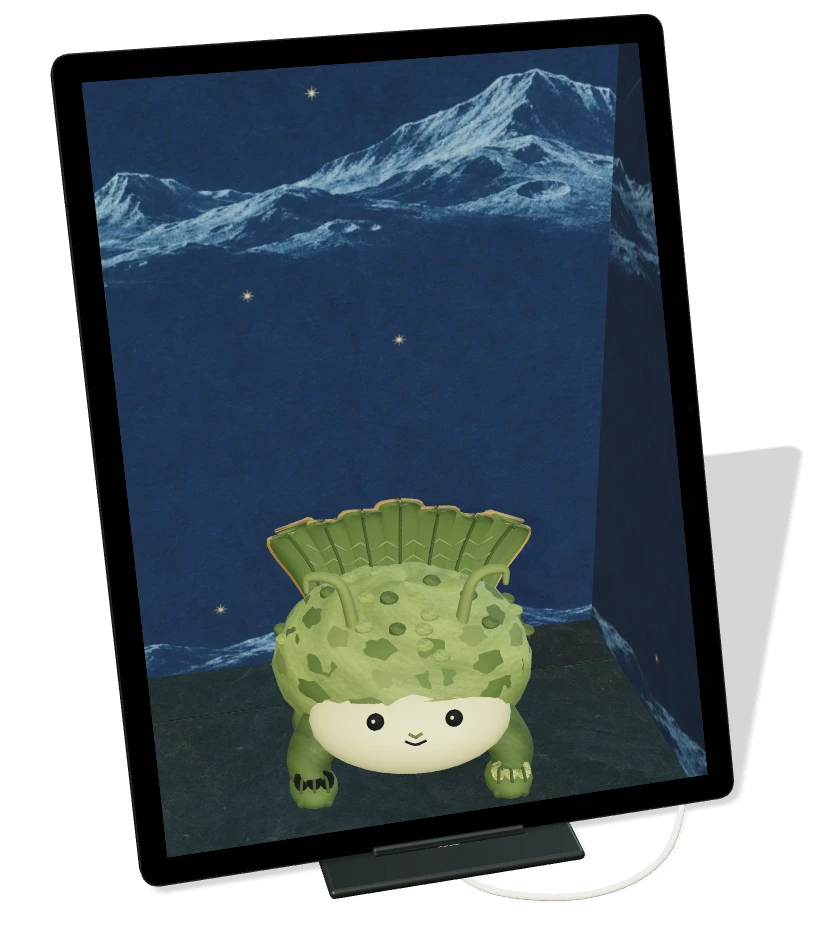
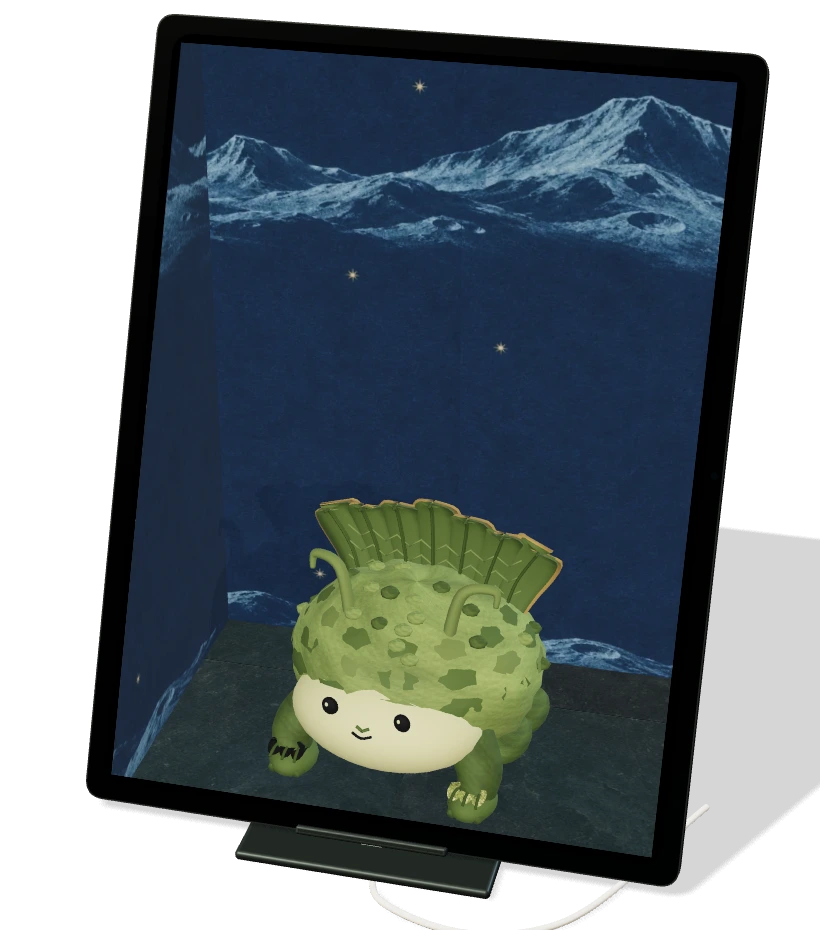
Stand angle: 65°. Actual app rendering, shown from a simulated seated viewpoint.
A little sparkle.
Right on time.
Set a timer and watch a 3D countdown beside the clock. Choose a sound and an effect for your alarms and hourly chimes, from drifting petals to stars and neon.
Choose an entrance, too. Rising wireframes or gathering particles of light reveal your character and clock, at a pace you set.
See the countdown in the room
Tap the clock screen to open Timer or Alarm. Choose a quick duration or turn the timer dial. Alarms can repeat on selected weekdays.
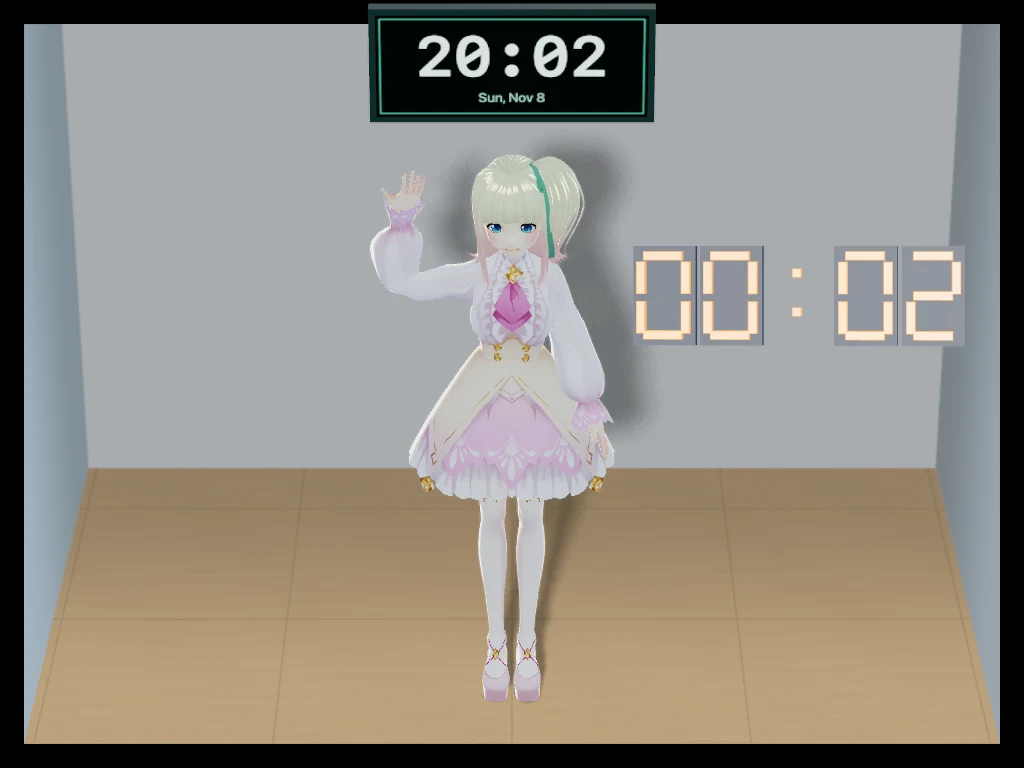
Effects play while the app is visible. On iPhone and iPad, alarms can also use local notifications when allowed. On Android, keep the app open for alarms and timer alerts.
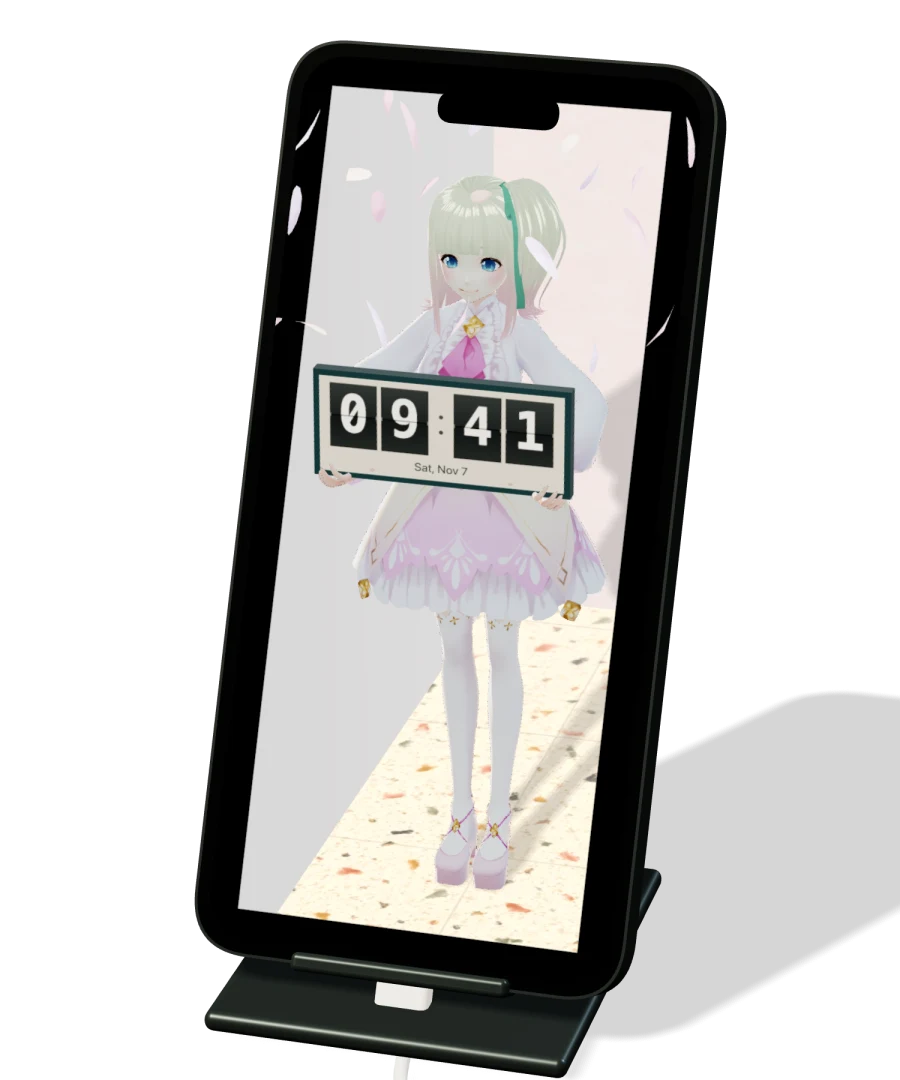
Your room.
Your surroundings.
Use the rear camera as a background, and the room can appear to continue into your surroundings. Adjust the framing and blur to suit your setup.
Available on supported iPhone and iPad models, with face tracking or the rear camera alone. Objects at every distance will not align perfectly with the real scene.
∠ Device tilt is measured from a level desk. The example shows 65°.
Set it down.
Look again.
- 01
Place it on a stand.
Start at 60–75°, about 50–70 cm from your face. The app senses the tilt and uses it to align the virtual floor with your desk.
- 02
Turn on face tracking.
Keep your face in view of the front camera.
- 03
Adjust as you look.
If the floors don’t line up, lay the device flat to calibrate its tilt. You can also adjust the center, distance and depth.
Portrait and landscape on iPhone and iPad. Stand not included.
Parapeek Clock
For iPhone, iPad and Android. Free with ads.
Optional one-time Remove Ads purchase.